Last Updated on August 23, 2026
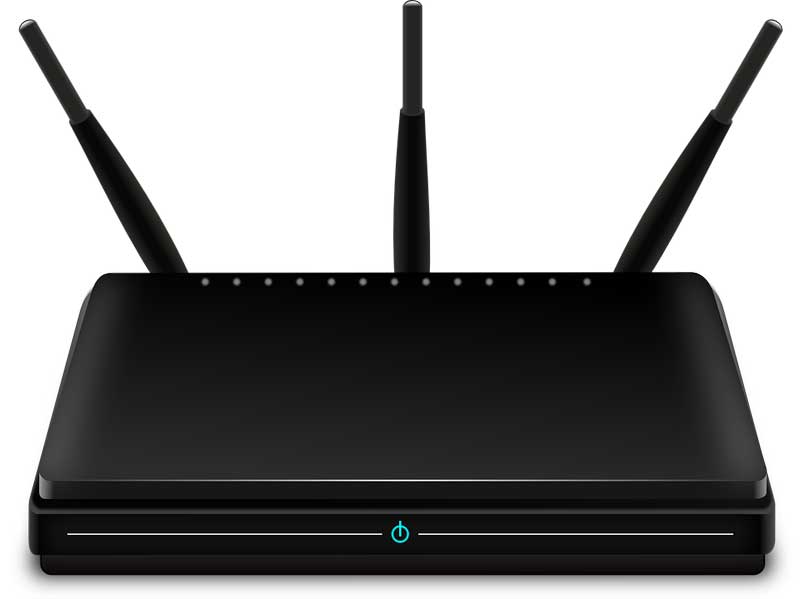
With today’s high-speed internet access,, having a secure barrier between your personal computer and the outside world is an absolute necessity. The best way to protect your home network is by installing a modern broadband Wi-Fi router.
Routers act as a hardware firewall. They block malicious network traffic from reaching your computer. They allow you to connect multiple devices to a single internet connection. They also broadcast the wireless signal you rely on for your laptops and smartphones.
Whether you purchased a popular brand like Netgear, TP-Link, Asus, or Linksys, the underlying technology remains exactly the same. Installing a broadband router is fairly simple once you understand how the physical connections and software settings work together.
Here is the step by step technician guide to setting up a modern home network for both wired and wireless devices.
The Physical Wired Installation
1. Locate Your ISP Modem
Even if you plan to use Wi-Fi for your laptop or phone, every router setup begins with a wired connection. You need to physically connect your new router to the modem provided by your Internet Service Provider. Locate the physical modem provided by your ISP, which connects directly to the coaxial cable or fiber line coming from your wall.
2. Power Down the Modem
You must completely shut down the existing network hardware before making new connections. Unplug the power cable from your modem to turn it completely off. Leaving it powered on can cause IP address conflicts when the new router connects.
3. Connect the Ethernet Cable
Take a standard Ethernet cable and plug one end into the network port on the back of your modem. You should use a high quality Cat5e or Cat6 cable for this specific connection. This wire carries the raw internet signal into your home.
4. Plug Into the Router WAN Port
Plug the other end of that Ethernet cable into the specific port on the back of your new router labeled WAN or Internet. This specific port is usually colored yellow or physically separated from the other connection slots. It is the only port that can accept the incoming internet feed.
5. Boot Up the Modem First
Plug the power cable back into your modem right now. Wait exactly two minutes for it to boot up and establish a clean connection to your ISP. Watch the indicator lights on the front panel to confirm it is fully online.
6. Power On the New Router
Plug the power cable into your new router and turn it on. The router gets its internet feed from the modem. Powering them on in this specific order ensures they assign the correct network addresses to each other.
7. Connect Your Computer
Take a second Ethernet cable for your local machine. Connect it from any of the numbered LAN ports on the back of the router directly into the Ethernet port on your desktop computer or laptop. Your computer gets its internet feed directly from the router.
Accessing the Router Admin Dashboard
1. Open Your Web Browser
Now that your computer is physically wired to the router, you need to log into the router brain to configure the settings. Open your preferred web browser on your connected computer. You can use standard programs like Microsoft Edge or Google Chrome for this step.
2. Type the Default IP Address
Type the router default IP address directly into the address bar at the top and press Enter. For most popular brands, this address will be exactly 192.168.1.1 or 192.168.0.1 or 10.0.0.1. This action loads the internal web server hosted on the router hardware.
3. Review the Login Screen
A login screen will instantly appear on your display. It will ask for an administrator username and password to gain access. This security measure prevents unauthorized users from changing your network configuration.
4. Find Your Default Credentials
Check the printed sticker on the bottom or back of your physical router. Manufacturers print the default login credentials right on the device for easy setup. Usually, the username is simply admin and the password is admin or a random string of printed characters.
5. Enter the Configuration Dashboard
Type those exact credentials into the login boxes and hit Enter. Once you log in, you will be inside the main configuration dashboard. You now have full administrative control over your local network.
Configuring Your Internet Connection
1. Launch the Setup Wizard
Once inside the dashboard, your router will usually launch a quick setup wizard. The very first thing it will ask is exactly how you receive your internet. This tells the router how to talk to your ISP modem.
2. Understand Dynamic IP Connections
Most modern home internet connections use a Dynamic setup. If you are unsure, you should read our guide explaining the difference between a [static vs dynamic IP address] to see which one applies to you. If you have a dynamic IP address, you can simply select DHCP or Automatic IP in the router settings. The router will pull the internet connection details automatically.
3. Configure Static IP Addresses
Some users pay for a static IP address for a business server or advanced home lab. You will need to manually type the specific IP address, Subnet Mask, and Gateway provided by your ISP into these boxes. Double check these numbers because a single typo will prevent internet access.
Setting Up the Wireless Network
1. Locate the Wireless Settings
The next step in the setup wizard is configuring the Wi-Fi signal. This allows you to safely disconnect your Ethernet cable and roam freely. Locate the Wireless or WLAN settings tab in your router dashboard.
2. Create a Network Name
Find the field labeled Network Name or SSID. This is the exact name that will show up on your phone or laptop when you search for Wi-Fi. Type in a highly unique name so you do not confuse your network with your neighbors.
3. Choose a Strong Security Mode
Find the Security Mode drop down menu on the page. You must select WPA2-AES or WPA3 for maximum protection. Never use WEP or WPA. Those are severely outdated security standards that hackers break in seconds.
4. Create a Network Passphrase
Find the Passphrase or Network Key box nearby. Type in a strong, memorable password. Anyone who wants to join your wireless network will need to know this exact password to gain entry.
5. Save and Broadcast the Signal
Click the Save or Apply button at the bottom of the screen. The router will instantly restart its internal wireless radios. It will now begin broadcasting your brand new secure network to the entire house.
Connecting Windows 10 and 11 to Wi-Fi
1. Unplug the Ethernet Cable
Now that the router is fully configured, you can unplug the physical Ethernet cable from your computer. You are ready to connect over the air. Microsoft has made finding and joining wireless networks incredibly easy in modern operating systems.
2. Open the Network Menu
Look at the bottom right corner of your screen near the clock. In Windows 10, click the globe or Wi-Fi icon. In Windows 11, click the combined network and volume icon to open the Quick Settings flyout, then click the arrow next to the Wi-Fi symbol.
3. Select Your New Network
A detailed list of available nearby networks will appear on your screen. Look through the list and find your specific router. Click the unique Network Name (SSID) you just created in the router dashboard.
4. Enable Automatic Connections
Check the specific box that says Connect Automatically. This ensures your machine reconnects on its own after a reboot. You do not want to repeat this manual process every time you turn on your PC.
5. Initiate the Connection
Click the Connect button below the checkbox. Windows will attempt to handshake with the router. It will then prompt you for the network security key.
6. Enter Your Wi-Fi Password
Type in the exact password you created in step four of the wireless setup. Make sure you use the correct uppercase and lowercase letters. Click Next to submit the credentials.
7. Verify the Internet Access
Within a few short seconds, your computer will verify the security key. It will establish a solid connection to the internet. Open your web browser and test a few websites to confirm everything works perfectly.
Pro Technician Tips and Troubleshooting
1. Fix Router Dashboard Loading Errors
You might type the standard IP addresses into your browser and get a Page Not Found error. Your router might be using a completely different default gateway out of the box. To find it, click your Windows Start button, type CMD, and press Enter to open the Command Prompt.
2. Check Your IP Configuration
Type ipconfig in the black window and press Enter. Look closely for the line that says Default Gateway. The string of numbers listed there is the exact address you need to type into your web browser to reach your router.
3. Understand Modems vs Routers
A modem brings the internet into your home from the outside world. It translates the analog signal from the cable company into a usable digital signal. A router takes that single internet feed and routes it to multiple different devices inside your house simultaneously via Ethernet or Wi-Fi.
4. Identify Gateway Combo Units
Today, many ISPs provide a Gateway box directly to consumers. This device is simply a modem and a router combined into one single piece of plastic. You can still plug a dedicated high performance router into these gateways to improve your wireless range.
5. Pick the Best Router Location
Wi-Fi signals act exactly like ripples in a pond. They expand outward in a circle from the antennas. For the absolute best coverage, place your router in a central, elevated location in your home.
6. Avoid Signal Blockers
Do not shove your router inside a wooden entertainment center or put it in the basement. Keep it far away from microwaves and thick brick walls. Dense materials will completely block the wireless radio frequencies and kill your speeds.
7. Utilize Dual Band Technology
Modern dual band routers broadcast two separate signals. You will typically see a 2.4GHz and a 5GHz option. The 2.4GHz band is slower but travels through walls very easily, making it great for smart home devices and distant bedrooms.
8. Maximize 5GHz Speeds
The 5GHz band is incredibly fast but has a very short range. It struggles to penetrate thick walls and floors. This makes it perfect for gaming consoles or laptops located in the exact same room as the router. Newer routers also include a 6GHz band for even faster local speeds.