Last Updated on April 25, 2026
Whenever you call technical support for an internet outage, or you try to set up a shared printer in your office, the very first question you will be asked is: “What is your IP address?”
Think of an IP address as your computer’s digital mailing address. Every single device connected to your Wi-Fi or wired network needs its own unique identification number so data packets know exactly where to go. Without it, you wouldn’t be able to load a webpage or send an email.
Whether your computer was assigned a permanent static address by an IT administrator, or it automatically grabs a dynamic address from your router, finding that string of numbers only takes a few seconds. Here are the two fastest ways to find your IP address in Windows.
Method 1: Use the Command Prompt (The Fastest Way)
The absolute fastest way to find your network information is by using the Windows Command Prompt.
- Press the Windows Key on your keyboard (or click the Start button).
- Type cmd into the search bar and hit Enter.
- A black window with a blinking white cursor will appear on your screen.
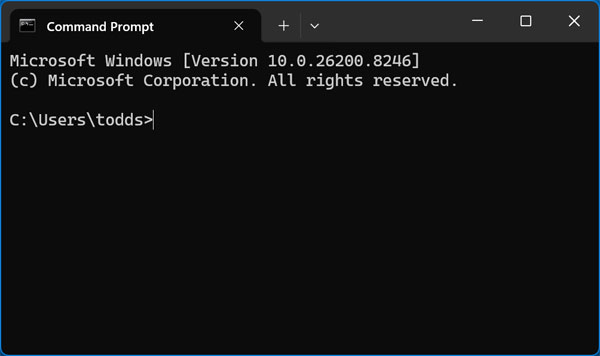
Inside that black box, type the command ipconfig and press Enter.
Your screen will instantly populate with your network connection details. If you have both Wi-Fi and a wired Ethernet cable connected, you will see a separate block of text for each adapter.
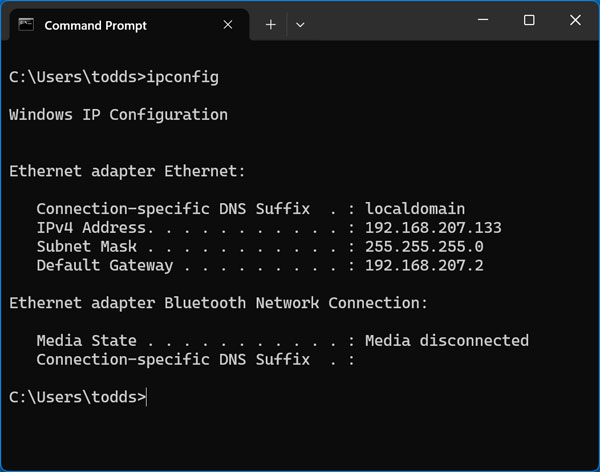
Reading the ipconfig Output
You only need to pay attention to three specific lines of information here:
- IPv4 Address: This is your computer’s actual local IP address on the network (usually starting with 192.168).
- Subnet Mask: This determines the size and segment of your local network.
- Default Gateway: This is the IP address of your internet router. If you ever need to log into your router’s admin settings, type this exact number into your web browser.
Finding Your MAC Address
If your IT department needs your physical hardware address (MAC address) or your DNS server info, the standard command won’t show it. Instead, type ipconfig /all and press Enter to generate a highly detailed report.
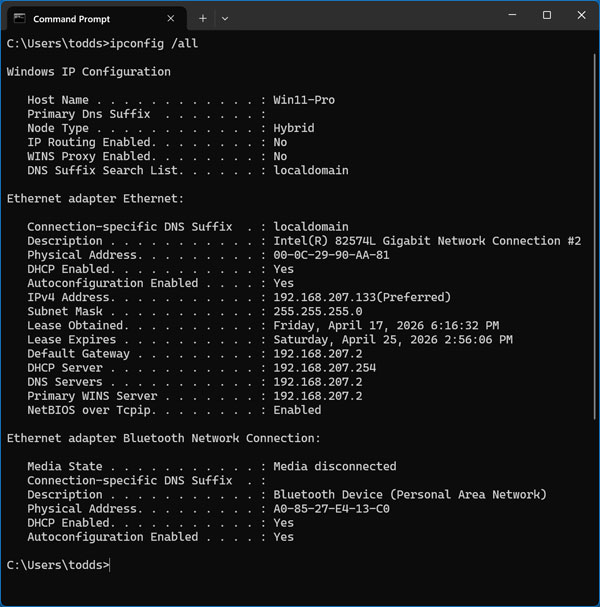
This option gives you information such as your host (computer) name, DNS & WINS information and your MAC or physical address of your network card.
Method 2: Use the Classic Network Connections Menu
If you prefer clicking through menus rather than typing text commands, you can find the exact same information buried inside the Windows Control Panel.
- Press the Windows Key + R at the same time to open the Run dialog box.
- Type ncpa.cpl and hit Enter. This is a brilliant shortcut that instantly opens the classic Network Connections panel in both Windows 10 and 11.
- Right-click on your active internet connection (either Wi-Fi or Ethernet) and select Properties.
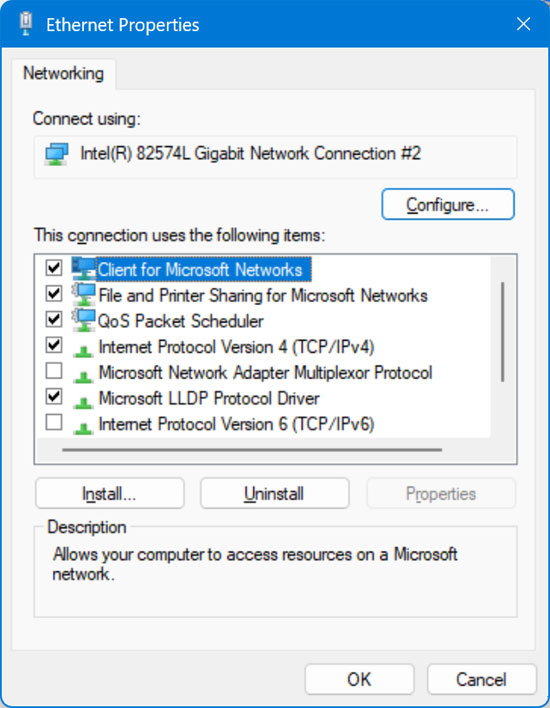
In the list of items, double-click on Internet Protocol Version 4 (TCP/IPv4).
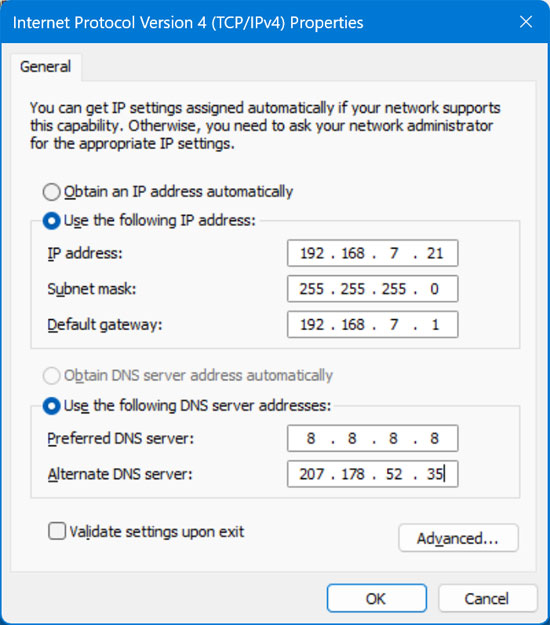
Automatic vs. Static Addresses
If your computer was manually assigned a permanent IP address, it will be clearly typed out in the boxes on this screen.
However, if the bubble for “Obtain an IP address automatically” is selected, all the boxes will be completely blank! Do not panic. This simply means your router is managing your IP dynamically using DHCP.
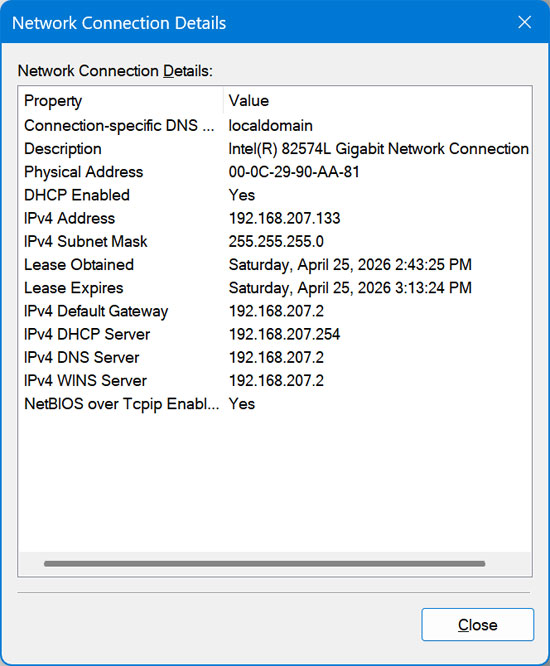
To find out what IP address your router secretly handed you, close out of the Properties menu. Instead, just double-click on your network adapter icon. In modern Windows, click the Details button (or the Support tab in older legacy versions of Windows) to view your active network assignment.
Wait, Is This My Public or Local IP Address?
The numbers you found using the steps above (like 192.168.1.15) represent your Local IP Address. This is a private number that only exists inside your house or office building.
Your router acts as a massive shield for your network. To the outside world, all the devices inside your house share one single Public IP Address. If you are trying to host a Minecraft server, set up a remote desktop connection over the internet, or whitelist your computer for a corporate VPN, they need your Public IP, not your local one.
How to find your Public IP Address:
Finding this is incredibly easy. Simply open your web browser, go to Google, and type “What is my IP” into the search bar. Google will immediately print your public address at the top of the search results.
Troubleshooting: Why is my IP address 169.254.x.x?
If you ran the ipconfig command and noticed your IPv4 address starts with 169.254, you have a network error.
This is called an APIPA (Automatic Private IP Addressing) assignment. It means your computer shouted out to your router asking for a valid IP address, but the router completely ignored it. Because your PC couldn’t get a real address, it assigned itself a temporary “169” address.
A computer with a 169.254 address cannot connect to the internet. To fix this, physically unplug the power cable from your internet router, wait 30 seconds, and plug it back in. Once the router reboots, restart your computer so it can successfully request a fresh, valid IP address.