Last Updated on April 28, 2026
Starting with Windows 98 Microsoft added a feature called the Windows System Configuration Utility (msconfig) that allows you to control what starts with your computer every time you boot up. It comes in very handy to help troubleshoot PC problems such as trying to figure out what program is causing your computer to run slow or misbehave. It is also an essential tool when trying to get rid of a virus or spyware infection on your system.
One thing to be aware of is that you need to be careful not to disable something you may need because then you can cause even more problems! If you don’t know what an item in the list does then you are better off leaving it alone or going online to find out what it is use for before making any changes.

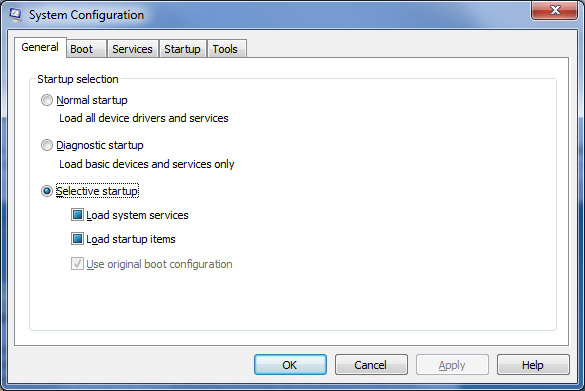
The fastest way to get there is to right-click the Start button and select Run, then type msconfig. Alternatively, you can now manage basic startup apps by going to Settings > Apps > Startup. This new Settings menu is much more user-friendly and uses simple toggle switches instead of checkmarks. It will then bring up a window which looks like the following although it may look a little different depending on your version of Windows but all versions do essentially the same thing.
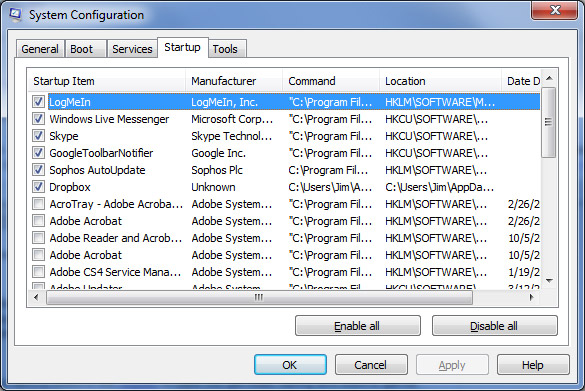
In the past, the we could use the Startup tab to see what apps were set to start with our computer as seen in the image below.
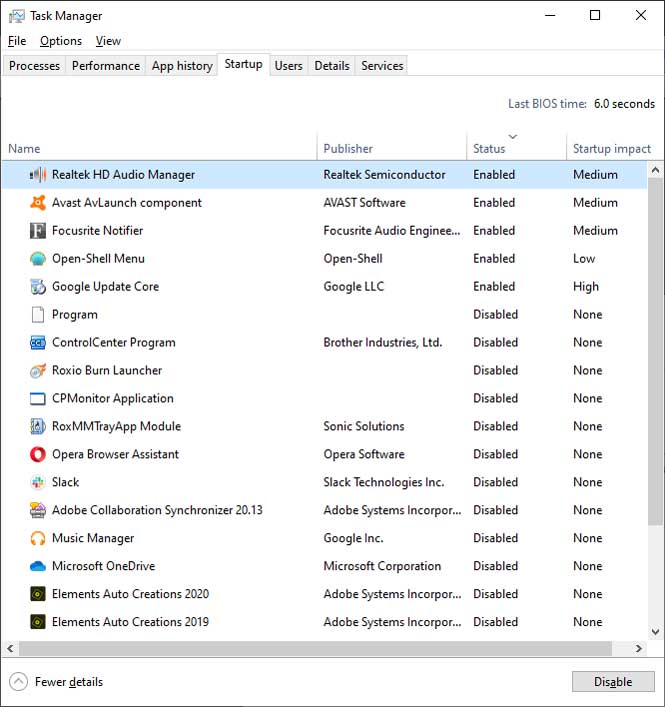
Once Task Manager opens, look at the “Startup apps” tab on the left sidebar. This is the modern control center. Instead of just a list of names, Windows now gives you a “Startup impact” rating (Low, Medium, or High). This tells you exactly which apps are responsible for making your computer feel sluggish when you first turn it on.
From there you can sort the startup items by enabled or disabled and if you need to disable an item, simply click on that item and then click on the Disable button. If you need to enable an item then the button will say Enable once you select that disabled button.
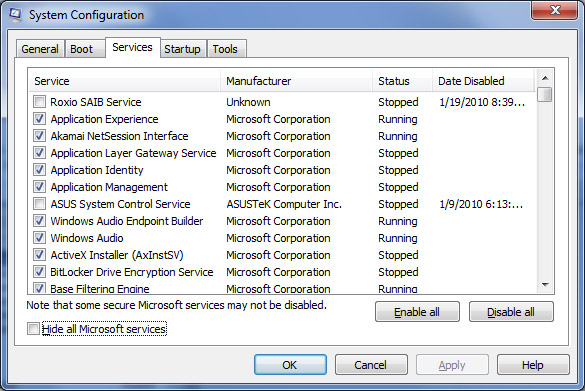
You may also want to look at the services tab to see what services are set to startup with your computer. This may come in handy especially for fighting viruses. Many viruses like to create a service that starts up with each reboot. If you check the box that says Hide all Microsoft services then you can will be able to get a smaller list of items to go through.
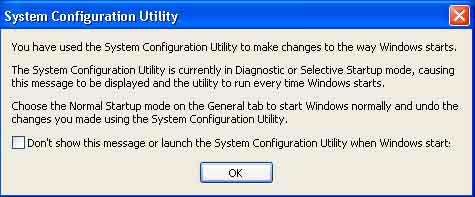
After you make a change and reboot, you may get a message that will pop up when you start your computer saying you have used the System Configuration Utility to make changes to the way Windows starts. Simply check the box that says don’t show this message on the bottom of the window so it won’t come up each time you boot your computer. Windows 7 usually wont show this message after you make changes and reboot.
The Pro Move: The Clean Boot
If you’re fighting a virus or a mysterious error, use msconfig to perform a Clean Boot. By choosing “Selective startup” and disabling all non-Microsoft services, you can start Windows in its “purest” state. If the problem disappears, you know a third-party app is the culprit. You can then re-enable them one by one until the error returns, finding the “needle in the haystack” every time.