Last Updated on April 10, 2026
Think of Windows System Restore as a “time machine” for your PC’s system files and registry. If a new driver, a Windows update, or a software installation causes your computer to crash or act erratically, System Restore allows you to roll back your system settings to a point in time when everything was working perfectly, all without touching your personal photos, documents, or emails.
While Windows typically creates “Restore Points” automatically before major changes, many modern installations have this feature disabled by default. It is vital to ensure System Protection is active before a problem occurs so you have a safety net to fall back on.

How to Enable System Protection
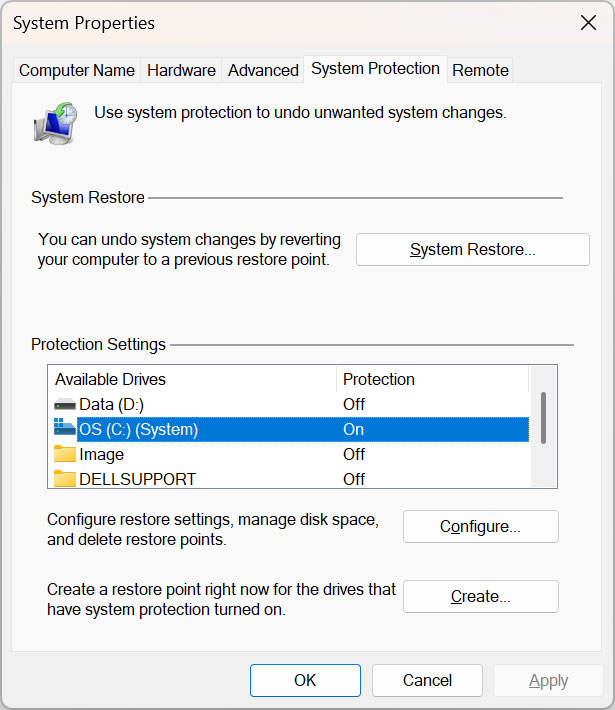
Because System Restore uses disk space to save snapshots, Windows 10 and 11 often leave it turned off. To enable it:
- Type “Create a restore point” in the Windows search bar and select the result.
- In the System Protection tab, select your Local Disk (C:) (System) and click Configure.
- Select Turn on system protection.
- Adjust the Max Usage slider. Usually, 5% to 10% of your drive space is plenty to store several weeks of restore points. Click OK.
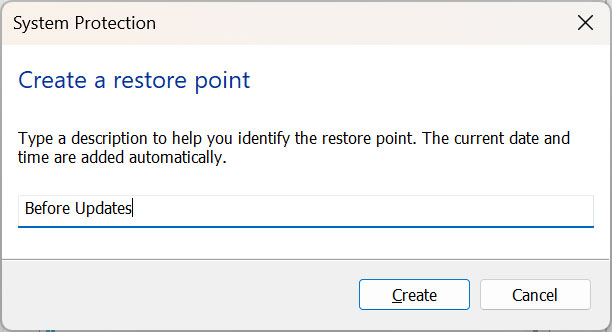
Creating a Manual Restore Point Before you experiment with new software or edit the registry, it’s wise to create a manual restore point:
- In the same System Properties window, click the Create button at the bottom.
- Give the point a descriptive name (e.g., “Before Installing New GPU Driver”).
- Click Create. Windows will handle the rest.
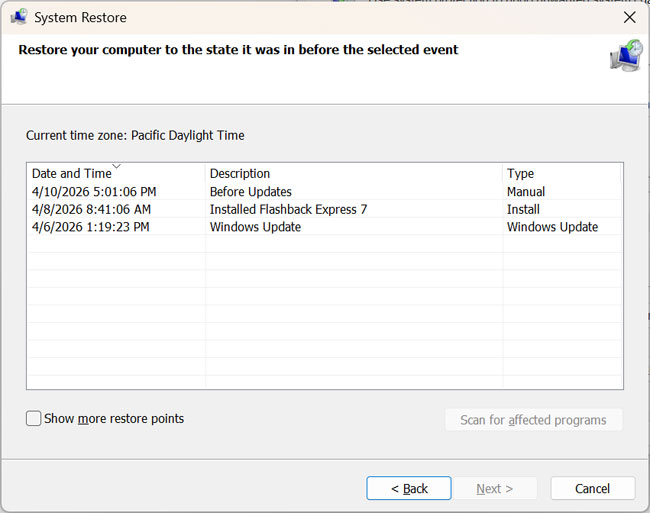
How to Restore Your Computer If your system becomes unstable:
- Open the System Protection tab again and click the System Restore button.
- Click Next and select the restore point you want to go back to.
- Pro Tip: Click Scan for affected programs to see a list of software or drivers that will be uninstalled or restored during the process.
- Follow the prompts to restart your computer. Windows will perform the restoration during the reboot process.
After you click on Next again you will see a message telling you that Windows will need to shut down your computer and that you should close any open programs. It also tells you that you will not loose any documents you have worked on since the restore date. At this point your computer will shut down and Windows will do its thing. After its complete you can review the stability of your system and if it looks good then you are ready for work. If not you can choose another restore point or undo the restoration.
Restoring When Windows Won’t Boot If your PC is so broken it won’t even reach the desktop, you can still access System Restore:
- Trigger the Advanced Startup menu (usually by interrupting the boot process three times or booting from a recovery USB).
- Navigate to Troubleshoot > Advanced options > System Restore.
- This allows you to roll back changes even when the main Windows interface is inaccessible.
For additional training resources, check out our online IT training courses.
Check out our extensive IT book series.