Last Updated on June 5, 2022
File associations are explicitly used to tell Windows what specific program to use to open what exact type of file. Without them configured properly, Windows simply would not know what to do when you double clicked a file on your computer. You may have actively noticed that Microsoft Word files always end with a .doc or .docx suffix such as resume.docx.
This simple suffix is called a file extension. It is exactly what Windows uses to manage its background file associations. If you absolutely do not see the file extension, you most likely have the option to hide file extensions checked in your folder settings. You can easily turn this display feature on by going to the View tab in File Explorer and checking the File name extensions box.

1. View All Default Programs
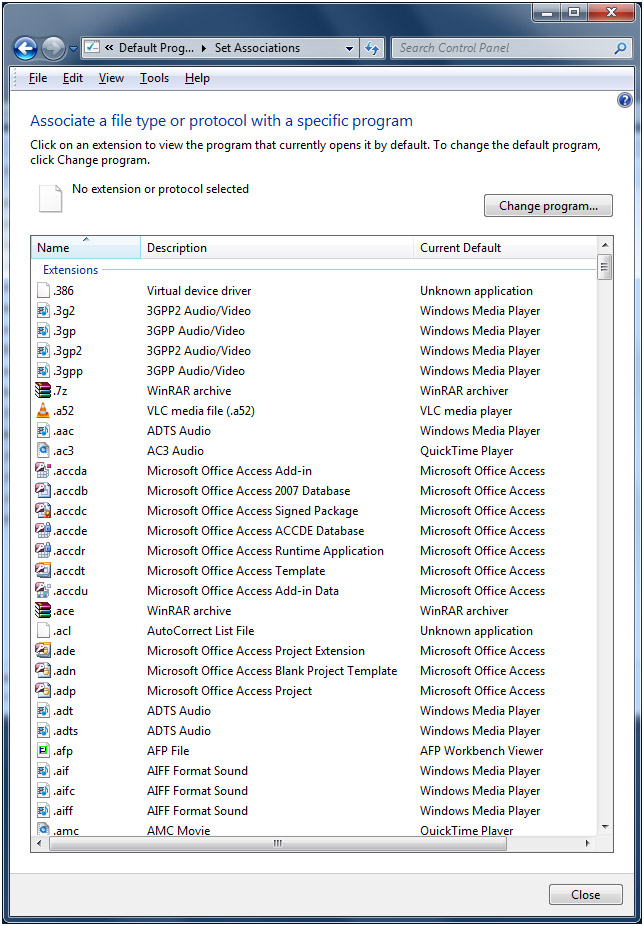
To get to your listing of file associations you can do it a couple of different ways. If you just want to view or change one type of file you can right click on that file and select Open with and then click on Choose default program. Or if you want to see all of your file associations then click on Start, Control Panel, Default Programs and then click on Associate a file type of protocol with a program. You can also get there by clicking on Start and typing in default programs. You will then see a list of all your file types and the programs associated with them.
2. Change a Specific File Type
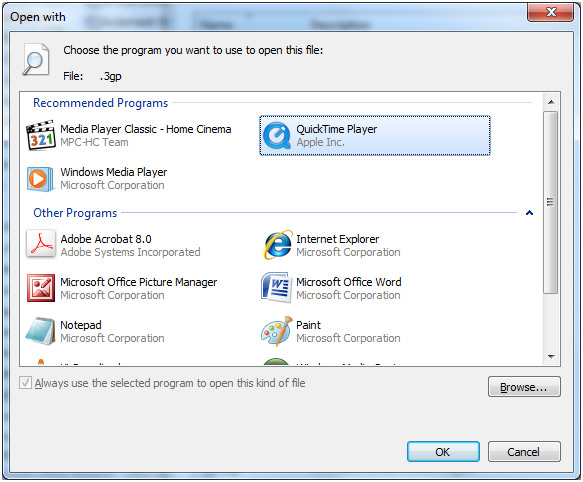
If you just want to quickly view or change one specific type of file, you can right click directly on that exact file. Select the Open with option from the context menu and then explicitly click on Choose another app. You will be immediately presented with several recommended programs to open that specific type of file.
3. Test Your New Application
You can easily choose a completely different program from the populated list or click to browse to its hidden executable file on your hard drive. Just be incredibly careful when changing file extensions manually. If you associate a file type with a program that absolutely cannot open that type of file, it will throw a harsh error every single time you double click it.
4. Revert Broken Associations
Your system will aggressively try to open that specific file format with the new incompatible program you assigned to it. If you want to safely play around with opening a certain file type with other programs, make absolutely sure you do not check the box that says Always use this app. Leaving that specific box unchecked prevents that file type from permanently being opened with the wrong program.
For additional training resources, check out our online IT training courses.
Check out our extensive IT book series.